If you run a WordPress site, you know the drill.
You log in to update a plugin, and suddenly your site breaks. You spend hours installing security plugins to block hackers. You want to test a design change, but you are afraid to touch the live site.
Managing WordPress effectively usually requires the skills of a System Administrator.
But what if you could automate it all with a single click?
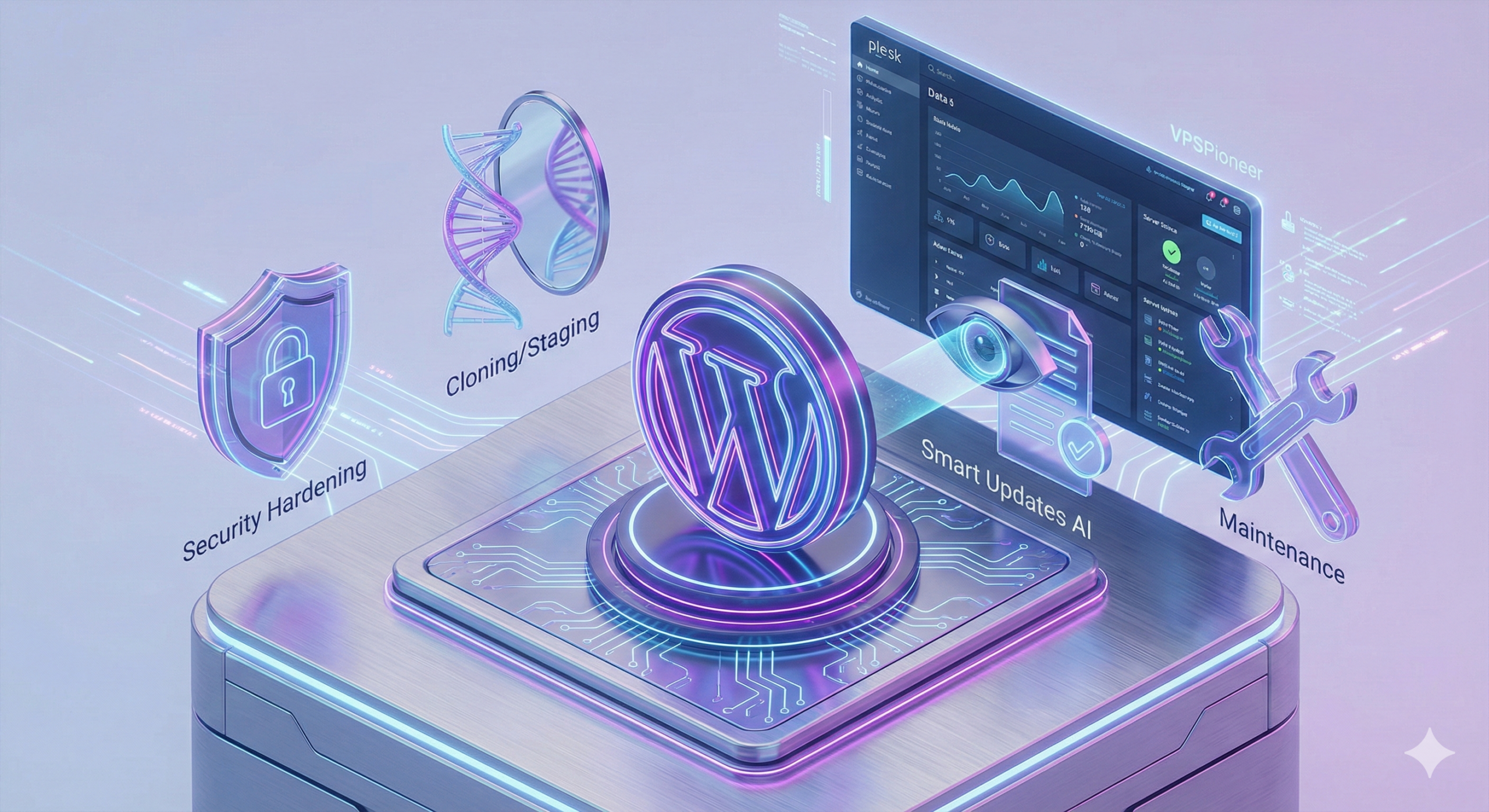
With VPSPioneer’s migration to the Plesk Control Panel, all our Web Hosting and VPS plans now come equipped with the powerful WordPress Toolkit.
This isn’t just an installer; it is a command center. In this guide, we will show you how to use this tool to secure, clone, and manage your WordPress sites like a pro—no coding required.
What is the WordPress Toolkit?
Think of the WordPress Toolkit as a “Swiss Army Knife” for your website. It lives inside your Plesk control panel and communicates directly with your WordPress installation.
It allows you to perform complex server-level tasks (like changing security rules, database management, and debugging) through a simple, visual dashboard.
1. One-Click Hardening (Security)
Usually, securing WordPress requires editing the .htaccess file manually (as we discussed in our .htaccess Guide) or buying premium plugins.
The Toolkit does this instantly.
How to use it:
- Log in to Plesk and go to WordPress.
- Click on your site, then check the “Security Status”.
- If it says “Warning” or “Danger,” click “View”.
- You will see a checklist of security measures, such as:
- Block directory browsing
- Forbid execution of PHP scripts in the uploads folder
- Secure wp-config.php
- Disable XML-RPC (prevents brute force attacks)
- Simply check the boxes and click “Secure”.
Result: Your site is now hardened against 99% of common attacks, without installing a single plugin.
2. Cloning & Staging (Don’t Break Your Live Site)
This is the most valuable feature for anyone who cares about their business.
Imagine you want to install a major WooCommerce update or change your theme. Never do this on your live site. If it crashes, you lose money.
How to use “Smart Cloning”:
- In the Toolkit, click the “Clone” button next to your site.
- Plesk will automatically create a copy of your site on a subdomain (e.g.,
staging.yourdomain.com). - It copies the files and the database, and automatically updates the URLs in the database so the new link works perfectly.
Now, you can break things on the staging site. Once you are happy with the changes, use the “Copy Data” feature to push the changes back to your live site.
3. Smart Updates with AI
Updating plugins is scary. Sometimes, an update changes the layout of your site, and you don’t notice it until a customer complains.
The Toolkit’s “Smart Update” feature uses Artificial Intelligence to test updates for you.
- It clones your site in the background.
- It runs the updates on the clone.
- It takes “Before” and “After” screenshots and compares them.
- If it detects that the visual layout has broken, it warns you and stops the update on your live site.
4. Debugging and Maintenance
Is your site showing a “Critical Error”? You don’t need to dig through FTP logs.
- Debug Mode: Toggle the “Debugging” switch in the Toolkit to instantly see PHP errors right on your screen.
- Maintenance Mode: With one click, you can put your site behind a professional “Under Maintenance” screen (which returns a 503 SEO code) while you work on it.
- Password Reset: Locked out of
/wp-admin? You can reset any user’s password directly from the Plesk panel without needing email recovery.
Why VPSPioneer + Plesk is the Perfect Match
Software is only as good as the hardware it runs on. The WordPress Toolkit is powerful, but it requires resources to run clones, backups, and AI analysis.
- NVMe Speed: Our VPS Plans use NVMe storage, which makes cloning a site take seconds instead of minutes.
- Dedicated RAM: “Smart Updates” are intensive. Our dedicated resource allocation ensures your live site doesn’t slow down while you are working on the backend.
- Scalability: Start with a single site on our Web Hosting, and as you grow, move your entire Plesk instance to a VPS seamlessly using the Plesk Migrator.
Frequently Asked Questions (FAQ)
Q: Is the WordPress Toolkit free on VPSPioneer? A: Yes! We include the WordPress Toolkit with all our Plesk-based hosting plans. Some advanced features (like Smart Updates) may depend on your specific plan tier.
Q: Can I manage multiple WordPress sites at once? A: Absolutely. If you are an agency or have multiple blogs, you can update plugins for all your websites simultaneously from one dashboard.
Q: Does Cloning affect my SEO? A: No. By default, Plesk configures the cloned staging site to discourage search engines (it adds a “no-index” tag), so Google won’t penalize you for duplicate content.