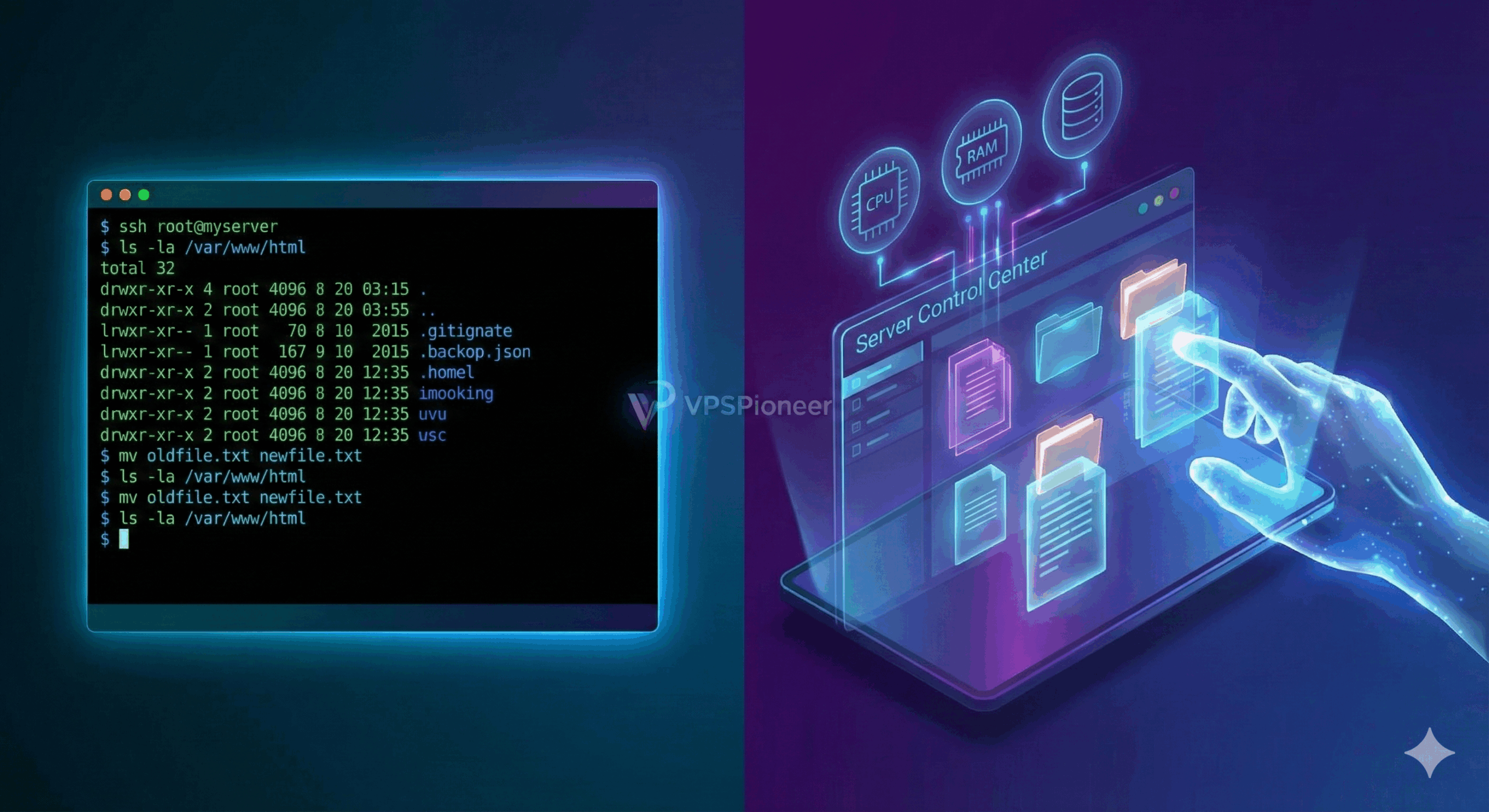
So, you finally did it. You upgraded from restrictive shared hosting to a powerful VPSPioneer VPS. You have your own IP address, dedicated RAM, and total freedom.
But then, you open the console, and all you see is a blinking cursor on a black background.
This is the Command Line Interface (CLI), and for many beginners, it looks terrifying. There are no icons to click, no folders to drag and drop. Just text.
Fear not. The terminal is not your enemy; it is your superpower. Once you learn a few basic commands, you will realize that managing a server via SSH (Secure Shell) is actually faster, more precise, and more powerful than any graphical interface.
In this guide, we will teach you how to connect to your server and the top 10 Linux commands every server owner needs to survive.
Part 1: How to Connect via SSH
Before you can type commands, you need to “dial in” to your server.
For Windows Users:
You can use the built-in PowerShell or download a free tool like PuTTY.
- Open PowerShell.
- Type:
ssh root@YOUR_SERVER_IP - Press Enter.
- Type your password (Note: You won’t see the characters appearing as you type. This is a security feature. Just type it blindly and hit Enter).
For Mac/Linux Users:
Simply open your Terminal app and use the same command: ssh root@YOUR_SERVER_IP
Part 2: Navigation (Where am I?)
Think of your server as a giant building with many rooms (directories).
1. pwd (Print Working Directory)
This command asks the server: “Where am I right now?”
- Usage: simply type
pwd - Output:
/rootor/var/www/html
2. ls (List)
This asks: “What is in this room?”
- Usage:
ls(lists files) - Pro usage:
ls -la(lists all files, including hidden ones, and shows details like file size and permissions).
3. cd (Change Directory)
This tells the server: “Go to this room.”
- Usage:
cd /var/www(Goes to the website folder). - Go back:
cd ..(Goes back one level/folder up). - Go home:
cd ~(Takes you back to the root user’s home folder).
Part 3: File Management (Creating & Destroying)
4. mkdir (Make Directory)
Creates a new folder.
- Usage:
mkdir my-new-website
5. touch and nano (Creating & Editing Files)
touch index.php: Creates an empty file.nano index.php: Opens a text editor inside your terminal. This is where you paste code or edit configurations.- To save in Nano: Press
Ctrl + O, thenEnter. - To exit Nano: Press
Ctrl + X.
- To save in Nano: Press
6. rm (Remove)
Warning: This command is dangerous. There is no “Recycle Bin” in Linux. Once you delete it, it is gone forever.
- Delete a file:
rm file.txt - Delete a folder:
rm -rf foldername( The-rmeans recursive,-fmeans force. Use with extreme caution!)
7. mv (Move / Rename)
In Linux, renaming a file is the same as moving it.
- Move:
mv file.txt /var/www/html/ - Rename:
mv oldname.txt newname.txt
Part 4: System Status (How Healthy is my Server?)
Is your site running slow? Use these commands to diagnose the issue on your VPS.
8. top or htop
This opens a task manager (like Windows Task Manager). It shows you real-time CPU and RAM usage.
- Usage:
top - Exit: Press
q. - Note:
htopis a more colorful, easier-to-read version. You might need to install it first:apt install htop.
9. df (Disk Free)
Checks your hard drive space.
- Usage:
df -h - The
-hflag makes it “human-readable” (showing MB and GB instead of bytes).
Part 5: The “God Mode” Command
10. sudo (SuperUser Do)
If you are logged in as root, you are already the god of your server. But if you are using a regular user account (for security), you need sudo to perform admin tasks.
- Usage:
sudo apt update(Run the update command with admin privileges).
Bonus: Keeping It Updated
Just like Windows Update, Linux needs updates to stay secure. Run this command frequently:
apt update && apt upgrade -yThis updates your package list and installs the latest security patches for your OS.
Conclusion: Practice Makes Perfect
The terminal seems intimidating because it is unforgiving. But it is also incredibly logical. Once you master these 10 commands, you will find yourself navigating your server faster than you ever could with a mouse.
Ready to practice? You need a sandbox. VPSPioneer VPS Plans give you full root access to a Linux environment where you can learn, build, and grow without limits.
Frequently Asked Questions (FAQ)
Q: I typed my password but nothing appeared on the screen? A: This is normal behavior for Linux SSH security. It hides the length of your password from anyone looking over your shoulder. Just type it correctly and press Enter.
Q: Can I copy and paste into the terminal? A: Yes! In most SSH clients (like PuTTY), simply Right-Clicking your mouse anywhere in the window will Paste the text you copied from your computer.
Q: What if I delete the wrong file? A: Unless you have a backup, it is gone. This is why we strongly recommend setting up automated backups or using our Dedicated Server solutions with RAID redundancy for critical data.
[…] you can SSH into your server (Ref: SSH Guide) and run these commands manually in the virtual […]